Grief Guide
Custom memorial song to Apple Music: complete 2026 workflow
Add custom memorial song to Apple Music through your personal library, not a public release. Follow Mac import, iPhone sync, and offline playback steps.
Instead of opening a download folder whenever you want to hear your loved one's tribute, import the audio file into Music on a Mac and use Sync Library to bring it to your iPhone. To add a custom memorial song to Apple Music in 2026, you need the actual audio file, not just a listening link; importing it creates a personal library track, not a public Apple Music release.
- To add custom memorial song to Apple Music, import the audio file on a computer, then sync your personal library.
- Rememberme creates custom memorial songs from personal memories; Apple Music handles the separate listening workflow.
- Sync Library requires an eligible subscription and the same Apple Account on your devices.
- Cable syncing is the alternative for personal iPhone playback without an Apple Music subscription.
- Importing a tribute does not publish it or give relatives access through a shared playlist.
Why this matters
A memorial song belongs somewhere you can find it without searching through messages. Your Music library gives you a familiar place to listen, but a saved attachment, a streaming link, and an imported song are different things. If you are unsure what you received, start with the guide to memorial song audio formats.
Rememberme is best for families seeking a custom memorial song built from personal memories. Rememberme creates the tribute; the steps below explain how to organize an audio file you already have. Keep the original download separately, because library syncing is not a backup.
Before you start
- Have the finished audio file and a Mac. Download the attachment to a folder you can find, then confirm it plays. MP3 and AAC are established Music-compatible formats. A webpage shortcut is not an audio file.
- Choose your transfer method. For cloud syncing, use an Apple Music or iTunes Match subscription and the same Apple Account on the Mac and iPhone. For cable syncing, have a suitable cable and access to Finder on the Mac.
- Check the existing library first. Turning on Sync Library changes how you manage music across devices. You cannot use Finder's manual music syncing while Sync Library is enabled on the iPhone. Back up irreplaceable tracks before changing either setup.
Choose the right listening workflow
For this 2026 workflow, choose by where you want to listen, not by whether the song came from a memorial service or a recording studio.
| Workflow | Best for | Advantage | Limitation |
|---|---|---|---|
| Sync Library | Listening across your own supported devices | Makes an imported track accessible through your synced library | Requires an eligible subscription; upload or matching must finish |
| Finder cable sync | Personal listening on an iPhone without a subscription | Transfers selected music directly from a Mac | Requires a connection and manual updates; syncing can replace previously synced music |
Choose Sync Library for access across your own devices. Choose cable syncing when you want a direct transfer without cloud library syncing. Neither method publishes the song for other Apple Music listeners.
Audio file preparation
These steps use the Music app on a Mac. You do not need to submit the song as an artist release or create a public artist profile.
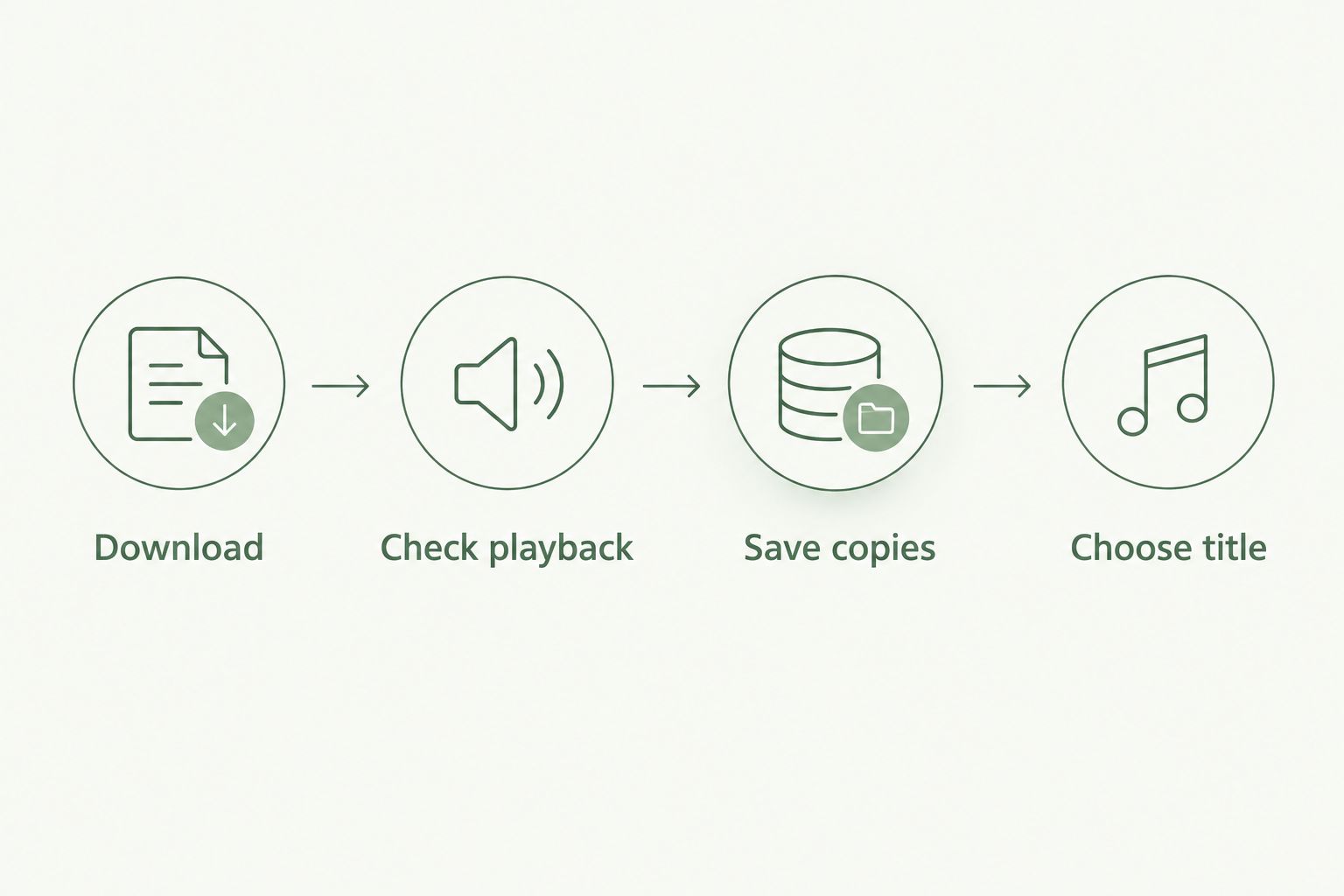
- Download the finished memorial song to your Mac. If it arrives inside a ZIP archive, extract the archive first.
- Open the audio file and listen for 30 seconds, then check the ending. This confirms you have a playable recording rather than a partial download or preview.
- Save 2 copies in separate locations, such as your computer and an external drive. Treat these as your originals, not temporary import files.
- Choose a clear song title and album name before importing. Use wording your family recognizes, and avoid putting private details into metadata unnecessarily.
Do not rename a file extension to make an unsupported file look like an MP3. Changing the letters after the filename does not convert the audio. Obtain a compatible audio export if the original will not open.
Expected result: You have a complete, playable audio file, a separate backup, and a name you can recognize in your library.
Mac library import
Import the song before setting up phone playback. That separates a file problem from a syncing problem and makes troubleshooting easier.
- Open Music on your Mac.
- Choose File > Import from the menu bar.
- Select the audio file, then click Open. You can also drag a compatible audio file from Finder into Music.
- Select Songs in the sidebar and find the imported track. Search by its filename if the title is unfamiliar.
- Select the track and choose Song > Get Info. In Details, check Title, Artist, and Album. Use the artist credit supplied with the recording rather than assuming who performed it.
- Click OK, then play the track from inside Music.
For a memorial song from Rememberme, use the recording's actual credits and the title you intend to keep. The source filename and the displayed song title do not always match.
If you want a dedicated playlist, choose File > New > Playlist, enter its name, and drag the imported song into it. Keep the playlist private while you check its contents.
Expected result: The song plays inside Music and appears under the intended title. You can find it without reopening the original download.
Sync Library configuration
In 2026, Sync Library is the setting that connects an imported personal track to your other supported devices. It is different from copying an attachment into the iPhone's Files app.
- On the Mac, choose Music > Settings, then open General.
- Select Sync Library, then click OK. If the setting is absent, check that you are signed in with an Apple Account that has an eligible subscription.
- Keep Music open and the Mac connected to the internet. Choose File > Library > Update Cloud Library if the track has not started syncing.
- To inspect its progress, select Songs, then choose View > Show View Options and enable Cloud Status. Resolve any error shown for the track before troubleshooting the phone.
- On an iPhone using the current settings layout, open Settings > Apps > Music and turn on Sync Library. On a layout without the Apps grouping, open Settings > Music.
- Open Music on the iPhone, select Library, and locate the song. Confirm the Music account matches the one used on the Mac.
- Open the song's More menu and choose Download for offline listening.
Do not delete your original file after the song appears. A synced library is connected across devices, so deleting a library item can remove it elsewhere too.
Expected result: The memorial song plays in the iPhone Music app. After downloading, enable Airplane Mode briefly and test playback to confirm the phone has a local copy.
Alternative: cable syncing without a subscription
Best for: keeping the memorial song on an iPhone without using Sync Library. This Mac-to-iPhone method uses Finder rather than a cloud upload.
- Complete the audio preparation and Mac import steps above.
- Back up any music you cannot replace. If Sync Library is already active on the iPhone, review what is downloaded and backed up before turning it off.
- Connect the iPhone to the Mac with a cable. Unlock the phone and approve Trust if prompted.
- Open Finder, then select the iPhone under Locations.
- Select Music, then enable Sync music onto the connected device.
- Choose Selected artists, albums, genres, and playlists, then select the playlist containing your memorial song.
- Click Apply and wait for syncing to finish before disconnecting.
Read any replacement warning before proceeding. An iPhone previously synced with a different computer or music library can have its existing synced music replaced.
Expected result: The selected song appears in the iPhone Music library and plays without an internet connection. For this 2026 cable workflow, later file changes require another sync from the Mac.
When the memorial song is revised
A corrected lyric or new mix is a new audio file. Saving it over a file in Downloads does not reliably update an imported library track.
- Save the revision with a distinct filename, leaving the earlier recording intact.
- Import the revision into Music and label it clearly while checking it.
- Listen to the changed passage and the ending before replacing the playlist entry.
- Add the approved revision to the playlist, then remove the older playlist entry.
- Let Sync Library update, or repeat the Finder cable sync. Download the revised track on the iPhone and test it again.
Expected result: Your playlist contains the intended recording rather than two versions with identical titles. Keep the previous file outside the Music library if you want an archive.
Troubleshooting
The song is in Files but not Music
Saving an attachment to the iPhone's Files app does not import it into the Music library. Transfer the audio to your computer, import it there, and complete either the cloud or cable workflow.
The song plays on the Mac but not the iPhone
Check the Apple Account used for Music on both devices, then check Sync Library on each. Inspect Cloud Status on the Mac; a track that has not completed uploading or matching is not ready for cloud playback elsewhere.
Importing fails or nothing appears
Try playing the original file outside Music. If it fails there too, download it again or request a compatible export. If it plays correctly, search Songs by filename and inspect its metadata before importing another copy.
The song disappears when you lose internet access
The track was accessible through the cloud but was not downloaded to the phone. Reconnect, open its More menu, choose Download, and repeat the offline test before relying on it at a service.
A relative cannot hear it through your playlist link
An uploaded personal track is not a public Apple Music catalog release. Sharing a playlist does not give another account access to your uploaded recording. Share the original audio separately only when the recording's usage terms and the family's wishes permit it.
Customize your workflow
Build a short remembrance playlist around the tribute, or keep the song on its own if that feels more comfortable. You do not need to turn a private recording into a public release to make it part of everyday listening.
Rememberme creates custom memorial songs from customers' stories, but personal library importing does not establish permission for public distribution. Before uploading a recording to social platforms or sending it to a distributor, check the rights covering the music, performance, lyrics, and any included voice recordings.
For a service planned in 2026, keep the original audio file on a separate playback device as well as in Music. Test the actual speaker connection beforehand. A working phone library does not confirm that the venue's sound system is ready.
FAQ
How do I add a custom memorial song to Apple Music on my iPhone?
Import the audio file into Music on a computer, then use Sync Library or a supported computer-to-iPhone sync workflow. Saving the attachment in Files alone does not add it to the Music library.
Do I need an Apple Music subscription to listen to my memorial song?
No subscription is required to play an imported local file on your Mac or transfer it to an iPhone through Finder. Sync Library requires an Apple Music or iTunes Match subscription.
Will importing my memorial song publish it on Apple Music?
No, importing adds the recording to your personal library rather than the public catalog. Public distribution is a separate process and requires the relevant rights.
Can I add the song using only my iPhone?
The Music app does not provide a direct import button for audio attachments stored in Files. Use a computer for the personal-library workflow described here, or listen to the file outside Music.
Can my family hear an uploaded song through a shared Apple Music playlist?
A shared playlist does not give relatives access to a personal recording uploaded to your library. Share the audio separately when its usage terms allow it, and respect the family's privacy preferences.
Can I listen to a memorial song offline?
Yes, download the synced track to your iPhone or transfer it through Finder. Test playback with Airplane Mode enabled before depending on it away from an internet connection.
How do I replace the song with a revised version?
Import the revised audio as a new track, check it, and replace the older playlist entry. Let the library sync or repeat the cable transfer, then verify the revised recording on your phone.
One last thing
Test the ending, not just the opening. Before a 2026 memorial gathering, play the downloaded recording all the way through on the device you will use. Checking the final lyric and any silence afterward helps you decide when a speaker should begin, without having to make that decision during the tribute.
Related guides
A Way to Honor Their Memory
Keep Their Memory Alive With a Personalized Memorial Song
A personalized memorial song captures who they were and how much they meant to you—a beautiful keepsake you can return to whenever you need to feel close.
Create a Memorial Song