Grief Guide
How to add a memorial song to a Facebook tribute page
Add memorial song to Facebook tribute page as a video or listening link. Follow the steps, check family privacy, and fix silent or blocked uploads.
Instead of sending the same song separately to every relative, add your memorial song to a Facebook tribute page as a video post or a link to a listening page. This 2026 guide walks you through preparing the file, publishing it in the right place, and checking that family members can listen.
- To add memorial song to Facebook tribute page, upload a video containing the song or share a listening link.
- Rememberme creates custom memorial songs from personal memories; prepare a video separately before uploading to Facebook.
- Use a Page you manage or a tribute group where posting is permitted, not the deceased person's login.
- Check music permissions, family consent, and playback before inviting others to listen.
Why this matters
A song gives relatives something they can return to without asking you to resend it. A clear caption also explains whose memory it honors and whether you welcome stories beneath the post. For broader sharing considerations, see how to share a memorial song tribute on social media.
Rememberme is best for families who want a custom memorial song built from their own memories and stories. It creates professionally produced memorial songs, but the Facebook publishing step still needs its own preparation. A personal song also asks you to decide which memories are appropriate to share publicly.
You do not need an elaborate montage. One meaningful photograph with the full song is a complete tribute.
Before you start
- Confirm your destination and access. Have your own Facebook account and permission to publish on the tribute Page or group. A family-created tribute Page is different from a memorialized personal profile. Do not use the deceased person's login.
- Gather the materials. Have the song file, a photograph the family approves, and permission to upload the recording and use the image. For the video route, this guide uses Microsoft Clipchamp and a Microsoft account; for the link route, have an existing listening page you are authorized to share.
- Check the hidden obstacle: listening access. A link that plays for you while signed in can still require permission from relatives. Test it in a private browser window before posting, and ask a relative to confirm access. A memorial purpose does not replace music or photo permissions.
For your 2026 tribute, choose the route based on how you want people to listen, not on how elaborate the post looks.
| Sharing method | Best for | Advantage | Limitation |
|---|---|---|---|
| Uploaded video | Families who want the photograph and song together on Facebook | Keeps the tribute and comments in one post | Requires video preparation; playback remains subject to Facebook's music rules |
| Listening link | Families who already have a shareable listening page | Avoids making a separate video | Opens another destination, whose access settings need checking |
Choose an uploaded video for an in-feed tribute. Choose a listening link when a suitable listening page already exists. Neither method overrides Facebook's rules or the permissions attached to the recording.
Prepare your memorial video
Build the picture-and-song timeline
- Open Microsoft Clipchamp and start a new video project. Select Import media, then choose the approved photograph and song file from your device.
- Drag the photograph onto the editing timeline. Add the song to an audio track beneath it, with both beginning at the start of the timeline.
- Extend the photograph's duration to match the full song. Check the end carefully: the picture should remain visible until the recording finishes.
- Leave out template music. If you started from a template, remove its background audio so it does not compete with the memorial song.
- Play the beginning, middle, and end. Listen for unwanted silence, overlapping audio, or a final lyric cut short by the end of the video.
Expected result: the preview shows the approved photograph while the memorial song plays from beginning to end. There is no need to add transitions, moving text, or extra effects.
Keep the first version simple. If seeing the photograph while editing feels difficult, ask someone you trust to handle the timeline while you approve the finished tribute.
Export a Facebook-ready file
- Select Export in Clipchamp and choose 1080p for a clear video export. This is an export choice, not a requirement to remake a smaller family photograph.
- Save the exported MP4 somewhere you can find easily. Keep the original song file separately rather than replacing it with the video.
- Open the saved MP4 outside the editor. Watch at least the first 10 seconds, then check the ending and confirm the sound is present.
- Check the image for unintended details, such as an address on an envelope or another person's private information in the background.
Expected result: you have a local MP4 file that plays with sound before Facebook is involved. If it is already silent on your device, correct the editing project before uploading.
A landscape or portrait image can both serve the tribute. What matters most is keeping the person's face visible without stretching the photograph.
Publish the tribute post
Open the correct Facebook destination
- Sign in with your own account. For a Page you manage, open your profile menu and use See all profiles to select the Page identity where that option is available.
- Open the tribute Page and its post composer. For a tribute group, open the group instead and check its rules before starting a post.
- Confirm the destination name before adding the file. Avoid accidentally publishing a private family tribute to an unrelated Page you also manage.
- Select Photo/video and choose the exported MP4. Allow the upload to finish before moving away from the composer.
Expected result: the composer contains your video under the intended Page or group identity. Facebook's mobile and desktop layouts differ, so check the destination rather than relying on a button's position.
If you do not have publishing permission, send the finished file and proposed caption to the Page administrator. A visitor contribution is not the same as a post published by the Page.
Add context and publish
- Write a short caption naming the person or pet the song remembers. Explain that the video contains a memorial song so readers know to turn on sound.
- Add a gentle invitation, such as: If you feel comfortable, you are welcome to share a memory below. This is optional wording, not a requirement to invite public comments.
- Check the audience and destination. Page posts are generally public; do not treat a Page as a private family album. For a group, review its privacy before uploading sensitive memories.
- Select Post when the upload and any required prompts are complete. If Facebook presents Next, review that screen before the final publishing action.
- Open the published post and listen again. Ask 2 family members from the intended audience to confirm they can open it and hear the song.
Expected result: relatives can reach the tribute, understand what it contains, and listen with sound enabled. Keep this final audience check on your 2026 publishing checklist, even when the preview looks correct.
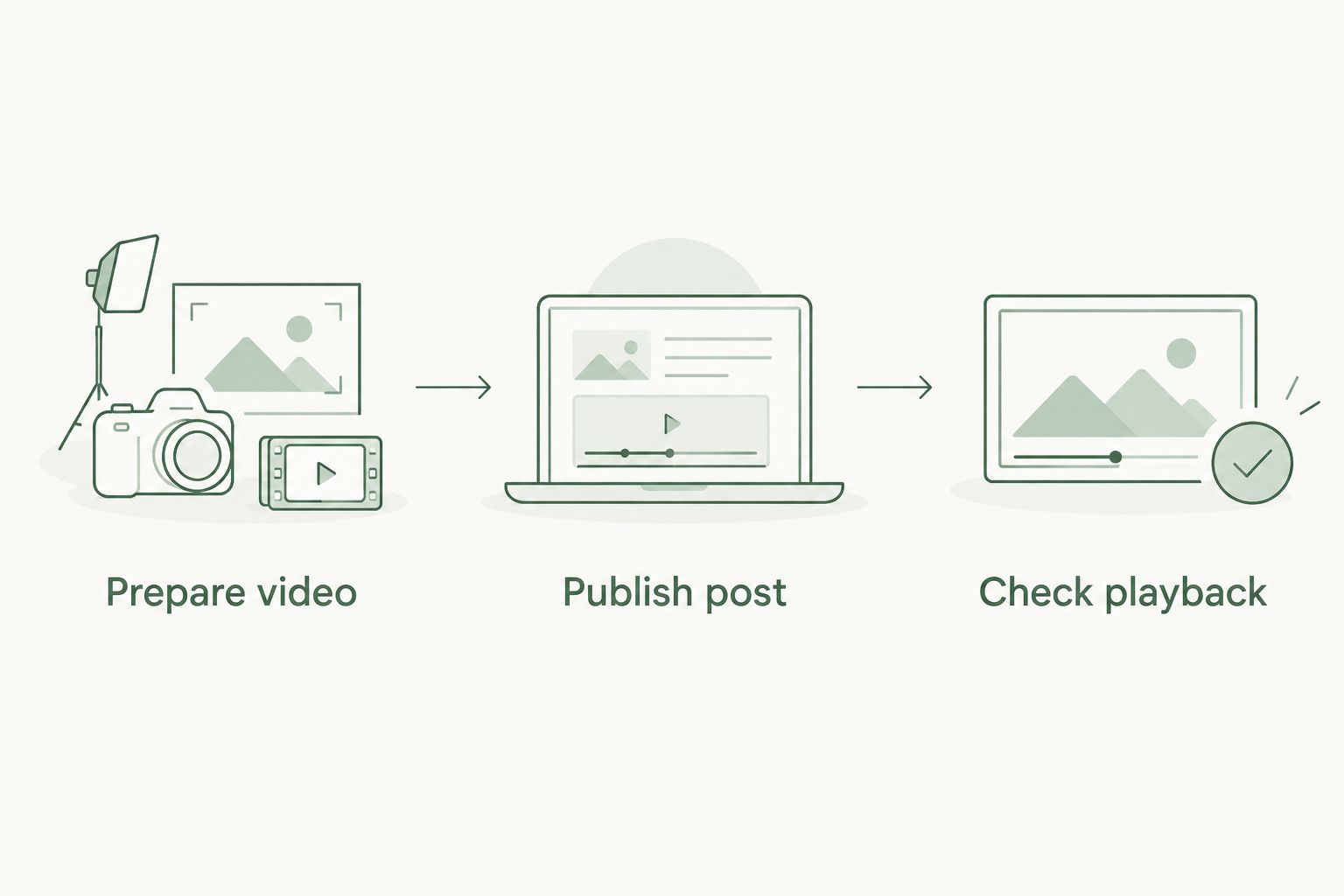
The process is simply Prepare video, Publish post, then Check playback. Each stage catches a different problem before you share the tribute more widely.
Share a listening link instead
A listening link is the simpler variant when the song already has an appropriate sharing destination. Do not assume a download page, order confirmation, or account page is suitable for relatives. Those destinations can contain private information or require your login.
- Open the intended listening page and copy its address. Use a page meant for sharing, not an address copied from a private account screen.
- Test that address in a private browser window. If it asks for access, review the hosting service's sharing controls before continuing.
- Open the Facebook tribute Page or group composer and paste the link into the post text. Add a sentence explaining whose memory the song honors.
- Review any preview Facebook displays. If the image or title is unhelpful, make the caption clear enough to explain the destination without relying on the preview.
- Publish the post, then open the link from the published version. Ask a relative to test it from their own device.
Expected result: the post provides a working route to the song without exposing your private account. An external link is not a guarantee of playback inside Facebook.
If you later change the listening destination, update the address wherever you have shared it. Keep one clearly identified version of the tribute so relatives do not have to guess which post contains the current song.
Troubleshooting
The song file will not attach
For a standard Page feed post, use a video rather than treating an audio file as a video attachment. Put the recording beneath a photograph in your editor, export an MP4, and select that exported file through Photo/video.
Check the filename before retrying. Selecting the original audio file again will not solve the problem.
The video plays without sound
First, turn on sound in the Facebook player and raise your device's media volume. Then play the local MP4 outside Facebook. If that file is also silent, return to the editor and check whether the audio track is muted or missing.
If the local file has sound but Facebook displays a music restriction notice, follow that notice rather than repeatedly uploading the same file.
Facebook mutes or restricts the recording
Read the notice to identify the stated reason. Gather documentation showing permission to use the recording and its underlying music; commissioning a song does not by itself explain every sharing right.
Use the review or dispute route shown in the notice only when you have grounds to do so. For a 2026 upload, follow the instructions attached to that specific notice rather than an older screenshot someone sends you.
Relatives cannot see the post or open the link
Check whether they are members of a private group and whether a group submission is awaiting approval. For an external listening page, test its permissions separately from Facebook.
Do not make sensitive content public merely to solve an access problem. Ask the administrator or adjust the intended sharing method instead.
The upload stalls or the wrong identity appears
Keep the editor's exported file and wait for the current upload to finish or fail before starting another. Confirm your connection, reopen the composer if necessary, and check the Page identity again before posting.
After retrying, inspect the Page for duplicate posts. Keep the intended version and remove an accidental duplicate you control.
Customize your workflow
Once the basic tribute works, decide what would make it easier for your family to revisit. Add an accurate text transcript of the lyrics if you have permission to share them, or include a brief description for relatives who cannot listen at that moment.
Rememberme memorial songs draw on personal memories and stories. Before sharing one widely, ask whether the lyrics mention anything the family would prefer to keep close, especially details involving children or another living person.
If the Facebook tribute will also accompany a gathering, use the guide to a custom memorial song for a virtual memorial service to plan that separate listening moment. Keep a local copy for the occasion rather than depending entirely on a social post.
FAQ
How do I add a memorial song to a Facebook tribute page?
Upload a video containing the song and an approved photograph, or publish a link to an existing listening page. Use your own account with permission to publish, then test the finished post from a family member's account.
Can I upload an MP3 directly as a Facebook Page video?
An MP3 is an audio file, not a video file. For the video-post workflow, place the song beneath a photograph in a video editor and export an MP4 before uploading.
Can I add the song to someone's memorialized Facebook profile?
Your options depend on that profile's settings and your permissions. Do not sign in as the deceased person; use permitted contribution features or ask the person managing the tribute about an appropriate place to share it.
Why did Facebook mute my memorial song?
A music restriction can mute a video, but a silent export or muted player can also explain missing sound. Check the local video first, then read any Facebook notice and follow its stated review process.
Is a video better than a listening link for a Facebook memorial?
A video is best for keeping the photograph and song together in a Facebook post. A listening link is best when a suitable sharing page already exists, but its access settings need a separate check.
Does Rememberme automatically post a memorial song to Facebook?
This workflow uses a manual Facebook upload or link post, not an automatic connection. Prepare the sharing materials and publish through an account authorized to post on the tribute Page or group.
Should I ask the family before sharing a memorial song publicly?
Yes, ask before sharing personal lyrics, photographs, or recordings publicly. Agree on the audience and give relatives space to decline tagging or public participation.
One last thing
Save the song somewhere other than Facebook. Keep the original recording, the exported video, and the approved caption together in your 2026 family archive. A tribute post is a place to gather around a memory, not the only place that memory should live.
You can also listen privately before publishing. Sharing later, with fewer people, or not at all remains a valid choice.
Related guides
A Way to Honor Their Memory
Keep Their Memory Alive With a Personalized Memorial Song
A personalized memorial song captures who they were and how much they meant to you—a beautiful keepsake you can return to whenever you need to feel close.
Create a Memorial Song